
How to use Document Upload
A quick way to build up expertise profiles for your users
Document Upload lets you upload files directly into Starmind. Our AI will automatically scan the content, extract relevant topics, and assign them as expertise to the users you choose. It's a quick way to improve expertise profiles without users having to do it manually.
Before you start
Make sure your document is saved in one of the supported formats: PDF, XLSX, or DOCX.
Step 1: Upload your document
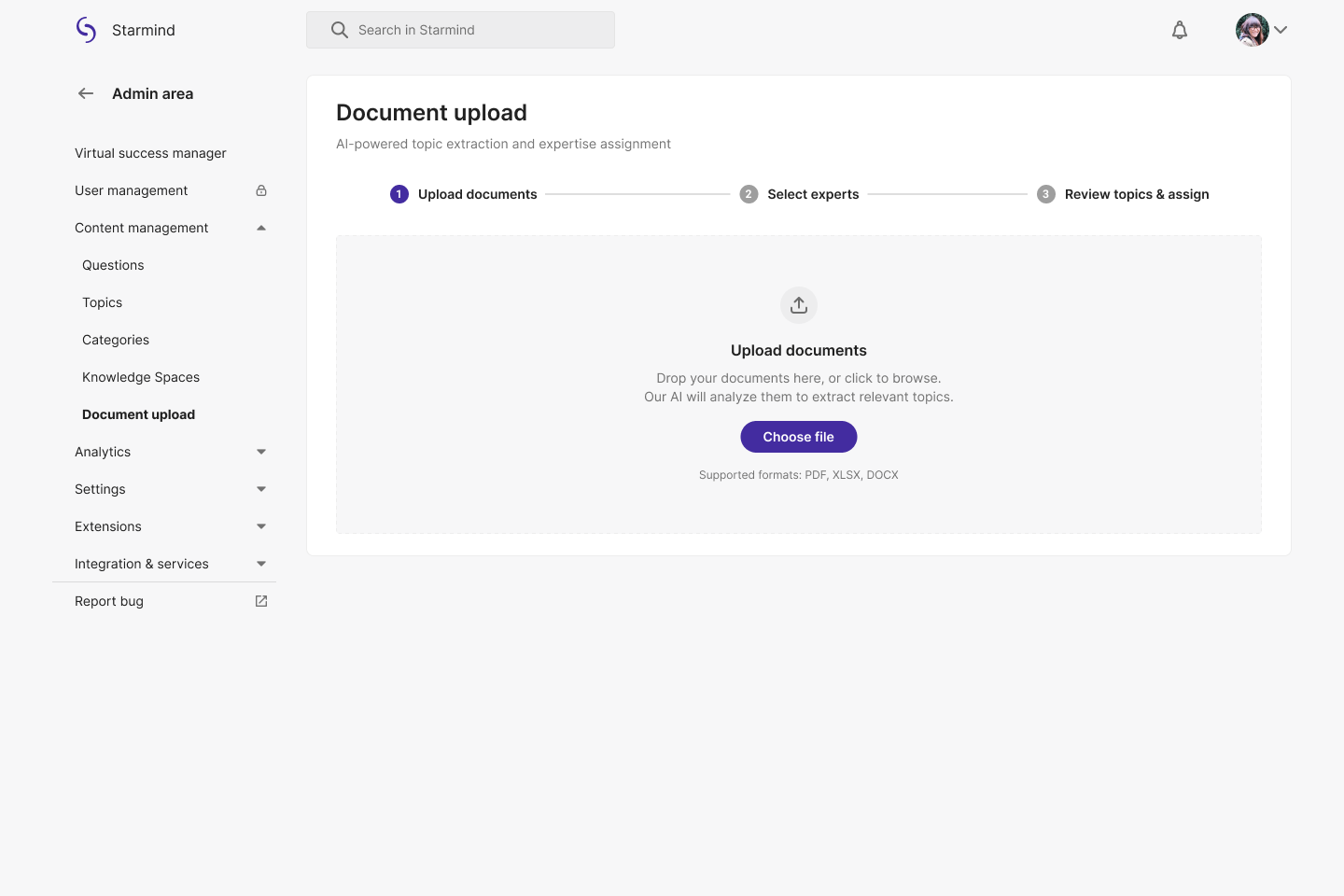
- Go to the Admin Area and select Content management > Document upload from the left-hand menu.
- Either drag and drop your file into the upload area, or click Choose file to browse for it on your computer.
- Once your file appears below the upload area with its name confirmed, click Continue.
Tip: You can upload multiple documents at once if needed.
Step 2: Select experts
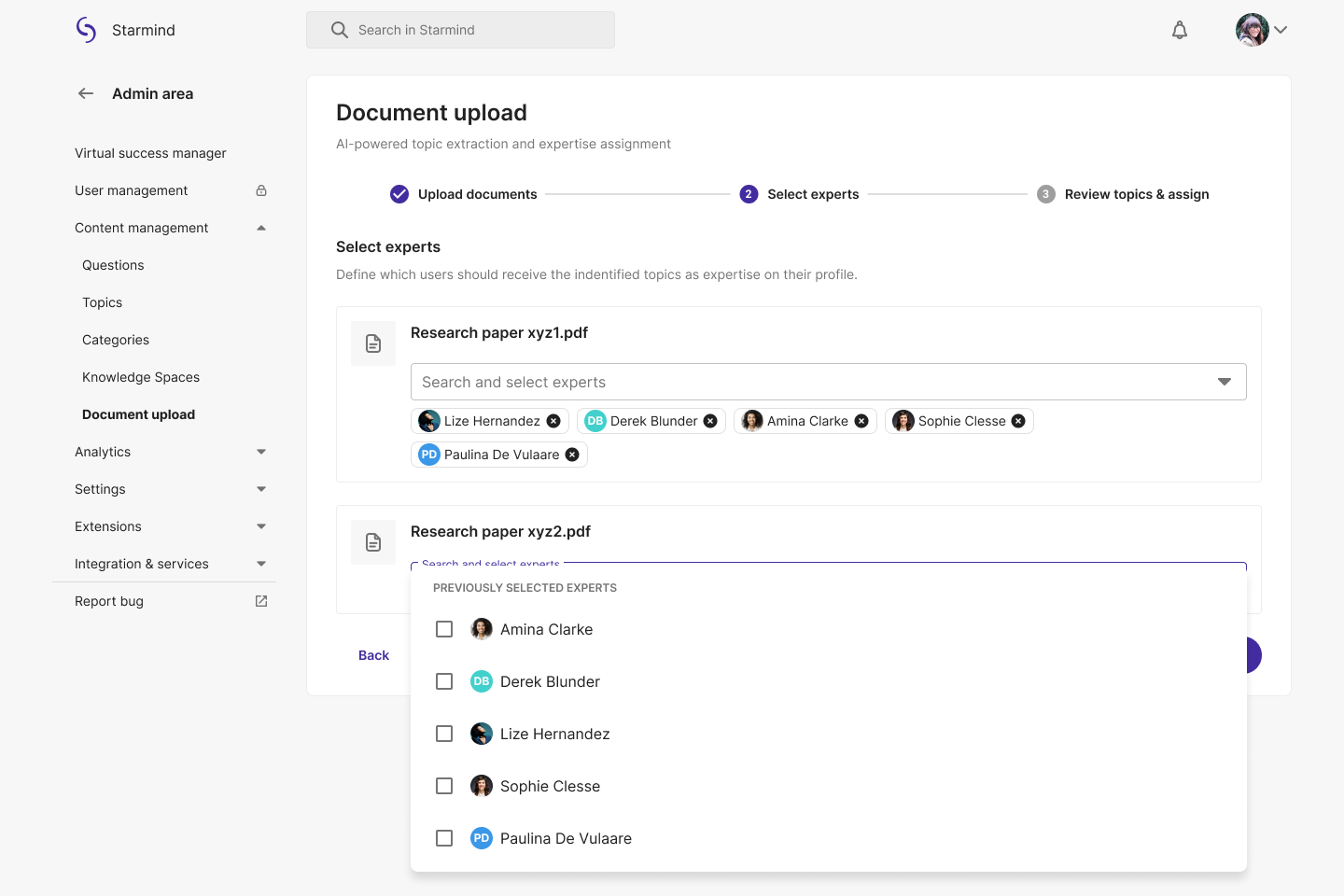
- You'll now see a list of the documents you've uploaded. For each one, use the Select experts dropdown to search for and choose the users who should receive the extracted topics as expertise on their profile.
- Once you've selected all relevant users, click Continue.
Step 3: Done!
Starmind will process the document, extract the relevant topics in their Knowledge Engine, and assign them to the selected users' profiles. You'll see a confirmation screen when it's complete.
If you'd like to upload more documents straight away, click Back to upload to start the process again.
Things to keep in mind
- Only PDF, XLSX, and DOCX files are supported. Other file formats will not work.
- The AI extracts topics automatically - you don't need to tag or label anything manually.
- The expertise will appear on the selected users' profiles once processing is complete.
- Maximum file size is 10 MB
Updated 3 months ago